Full Control – The solution for your company
Are you a business owner? Does your company manufacture and sell quality products, but you do not know whether you are making a profit or just dealing with work and problems? You are not alone. This is the dilemma of most business owners, and Full Control was created to solve it.
Full Control is a system that allows you to control the most important aspects of your company: those involving costs, waste, and deviations.
In practice, you will know:
-
how much it costs to manufacture each product.
-
what goods are used in production and in what quantity.
-
what is the cost of the labor employed in production.
-
how much merchandise left the inventory and how much should have left in view of what was produced and what was sold.
Of course, you will have an initial effort to register the goods, products and their compositions, but I assure you that the effort will be worthwhile.
Full Control is a sophisticated system that requires attention and reading the documentation. It is completely free, but it will have advertising to cover the cost of cloud hosting and the team responsible for its development and maintenance. We do not rule out the possibility of having, in the future, a paid plan without ads and with priority support, but the free plan will always exist.
Companies with no activity for more than 1 year will have their data deleted from Full Control without prior notice.
You can support this project with feedback, suggestions, and bug reports by email at fullcontrolappbr@gmail.com.
If you are interested, keep reading to learn more.
Vicente Barbosa
1. How to access Full Control
Register your company
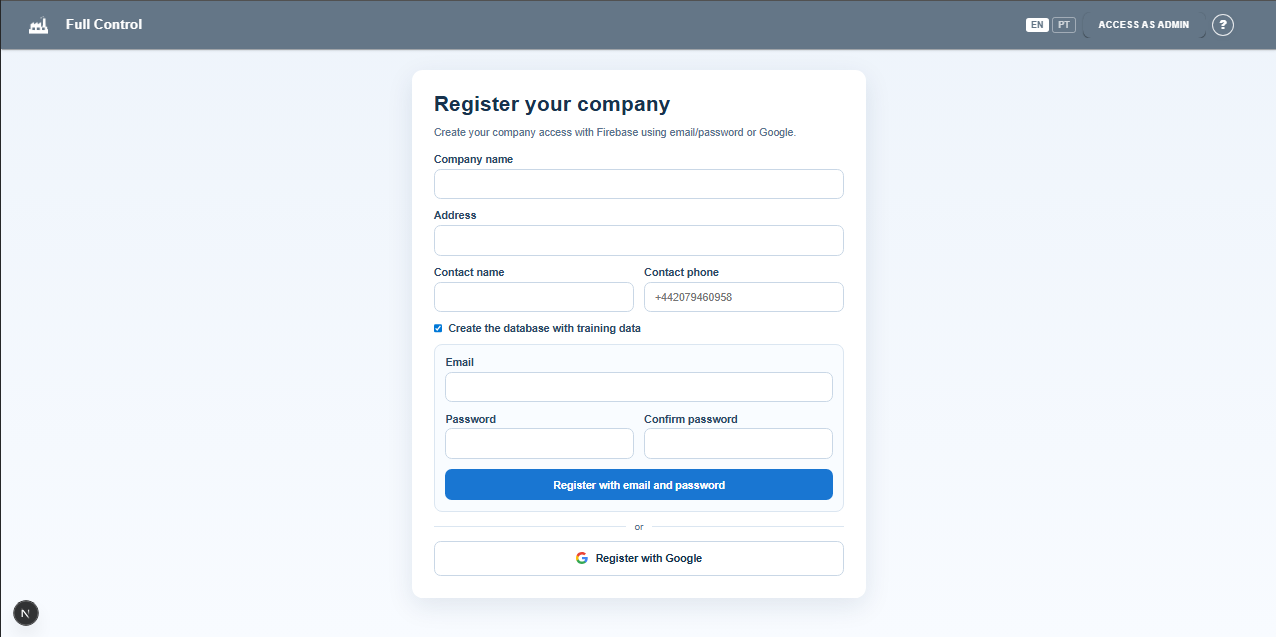
The first step is to register your company in the system using the "REGISTER YOUR COMPANY" button in the top bar. You must fill in the required information and choose whether to register with an email and password or with an existing Google account on your computer or mobile device. If you choose email and password, keep the registered password safe.
You must also choose whether you want to "Create a training database" or not. I recommend choosing "yes" and providing a fictitious name for the company to understand how the system works with simulated data. Later, you can register the definitive company name, without data, to populate it with your real data.
The training database is a pizzeria that sells the products it manufactures, in addition to reselling merchandise such as soft drinks.
The first product is a recipe that yields 6 kilos of pizza dough, which is common to all pizzas. The second is a stack of 10 pizza discs, made by another team, which uses 1 kilo of dough per stack, in addition to other ingredients. Pizza discs are also common to all pizzas. The third and fourth are specific pizzas, each using one pizza disc, in addition to other ingredients. The fifth product is a soft drink, which is not produced but has a resale price higher than the purchase price and needs inventory control.
This configuration is to demonstrate the use of intermediate production for final products.
The database has production and sales records from April 9th, 2026 to April 13th, 2026, as well as goods receipt and inventory count events.
Access as admin
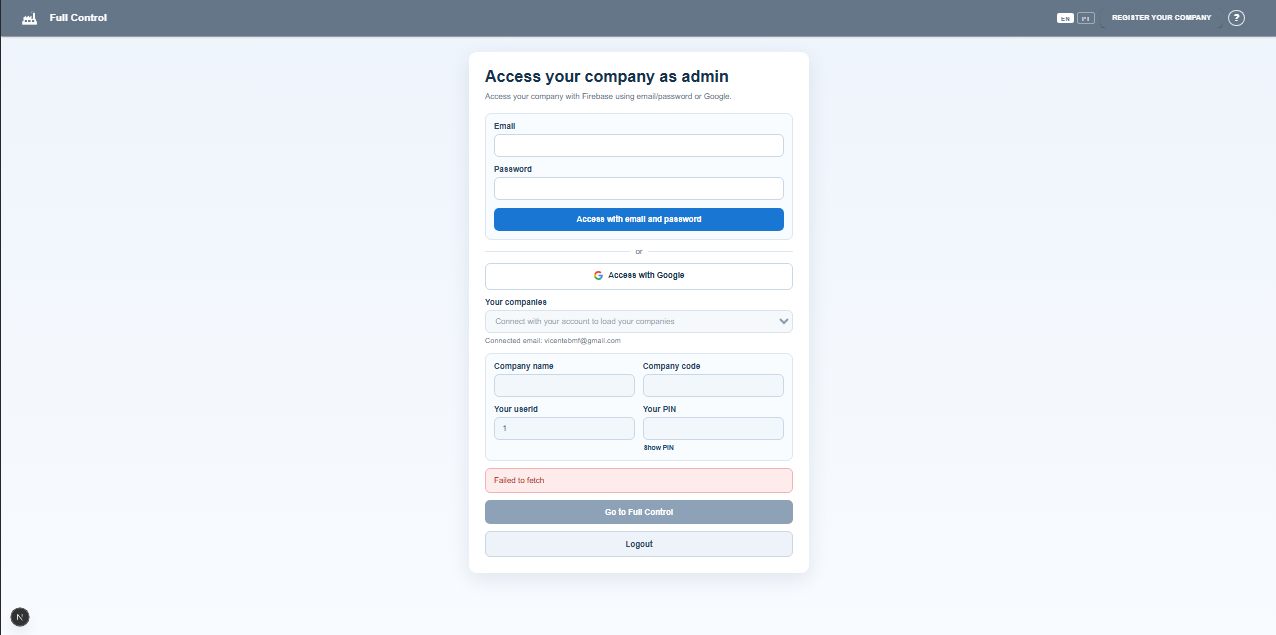
After a successful registration, you will be redirected to the "Access your company as admin" screen, already showing the data returned during registration, namely:
- Company name: the name you entered during registration.
- Company code: a random 3-letter code that refers to the company.
- Your user: it is always 1 for the user who registers the company.
- Your PIN: a random 4-digit numeric password created during registration. You can view the user's PIN by clicking "Show PIN".
To enter the system, click "Go to Full Control", or click "Exit" to disconnect your user.
Access with standard login
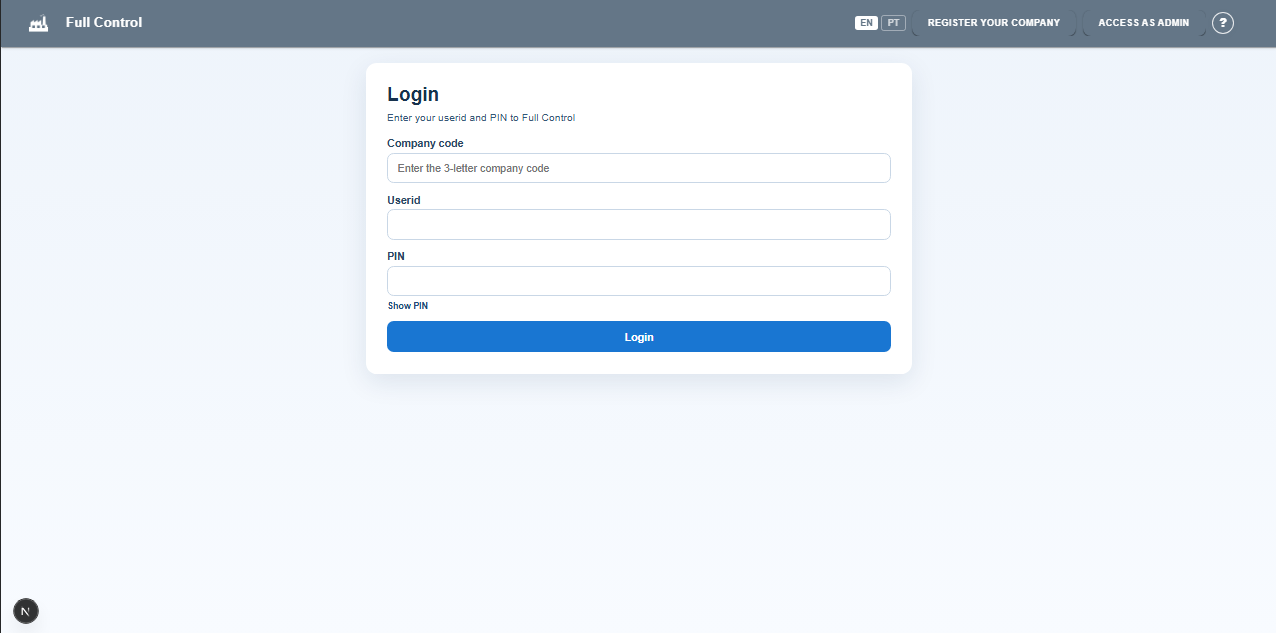
The login screen is the initial Full Control screen. You must fill in the information below, provided by the Full Control admin in your company, to access the system.
- Company code: a 3-letter code that identifies the company.
- Your user: a sequential numeric code.
- Your PIN: a 4-digit numeric password.
A standard user can access the modules authorized by the admin.
The admin can enter Full Control in both ways: through admin access or through standard login.
2. Main modules
Products
This is the central module of the system. A product is the result of a production, work, and raw material transformation process. It can be a finished product, with a sales price for customers, or a by-product, with no sales price, used in the composition of finished products or even other by-products. The absolute term product includes both finished products and by-products.
Product list
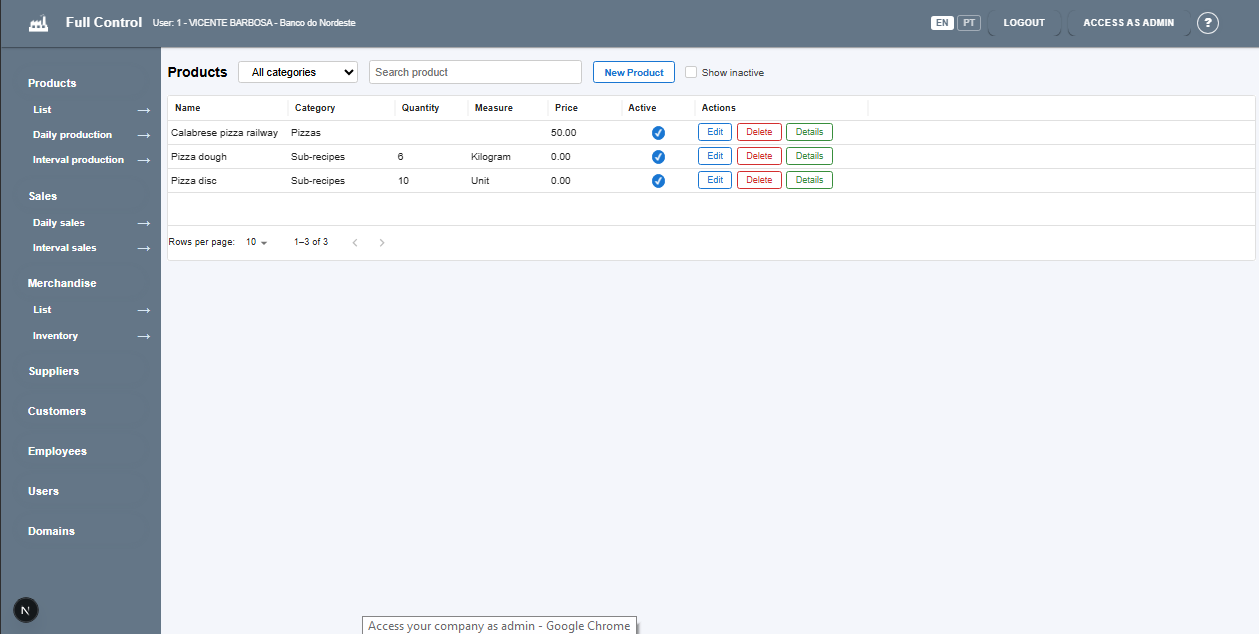
All company products must be registered, but choose one to start with by clicking "New product".
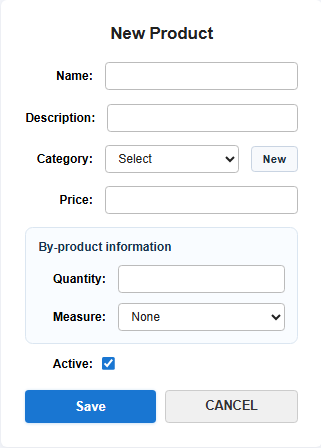
The upper part of the screen is common to finished products and by-products. Organize them into categories and enter 0 as the price for by-products.
The lower part of the screen contains information specific to a by-product, namely the produced quantity and the unit of measure. For example, making pizza dough uses several ingredients (merchandise) in quantities defined by the production process. The dough produced will yield a final quantity that can be measured in units of weight, volume, length, or quantity.
When you go back to the product list, edit the registered product to configure its composition, manufacturing process, and specifications.
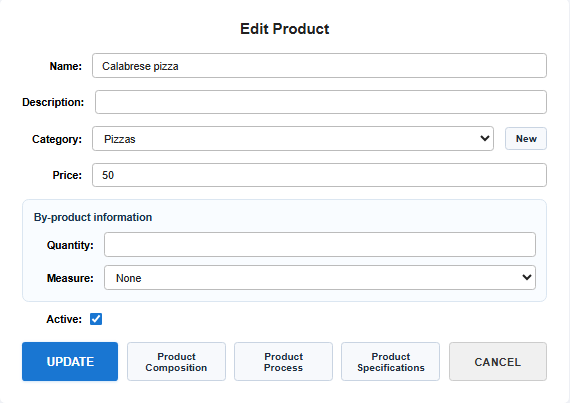
Start by creating the product composition by clicking "ProductComposition".
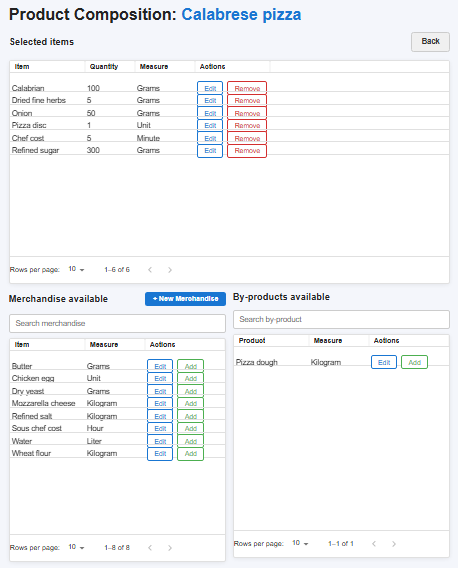
This screen is the heart of the system and must be filled in correctly, because all calculations will use this information.
It is divided into 3 parts:
- Selected items: contain the merchandise and by-products used to manufacture the product.
- Available merchandise: contain the merchandise previously registered that can be added to the composition of the product being edited.
- Available by-products: contain the by-products that can be added to the composition of the product being edited. Products with produced quantity and unit of measure in their registration are considered by-products.
You must compose the product with the available merchandise and by-products by clicking the "Add" button in both lists.
A clarification about the definition of merchandise, even though it may seem obvious: merchandise is what you buy from suppliers to compose your products or to resell in retail. The Merchandise module will provide more information.
After adding the merchandise that composes the product, you must configure the quantity and measure used in the product's manufacturing by clicking the Edit button in the selected items list.
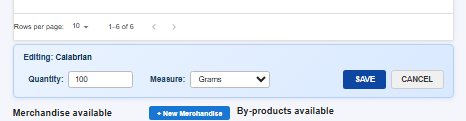
Fill in the quantity used and the corresponding measure. The system allows any unit of measure compatible with the unit of measure of the merchandise or by-product. For example, if the merchandise is registered in kilograms, you can configure it in the composition as kilograms, grams, or even measurements from the imperial system. The same applies to measurements of volume, length, and quantity.
Full Control has the unit-of-measure type time for informing the amount of labor time spent manufacturing the product. For example, you can register merchandise items such as Head chef and Kitchen assistant, among others, and define the hourly rate according to the role. You can add these items to the product, informing the time used in hours, minutes, or seconds. This item is often very significant in the final product cost.
When you return to the product edit screen, you can describe the Product Process and Product Specifications. These are free-text fields. Save the updates to return to the product list.
Click Details on the created product. You will see a screen similar to the one below, with the selected items and the proportional cost of the merchandise and by-products used in the product composition, as well as the total cost. You can choose whether to display labor time costs or not.
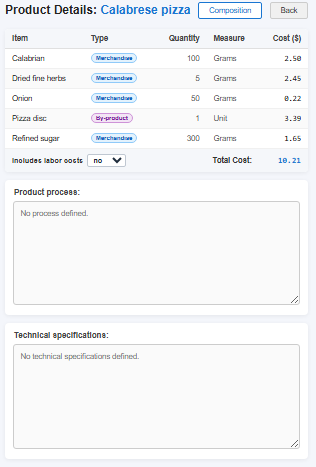
At the bottom, the texts entered in Product Process and Technical specifications are displayed.
Although the registration work is demanding, it is done only once and then only when there are changes to product composition, process, or specifications.
Daily production
This is the feature that will make all the effort of registering products and merchandise worthwhile.
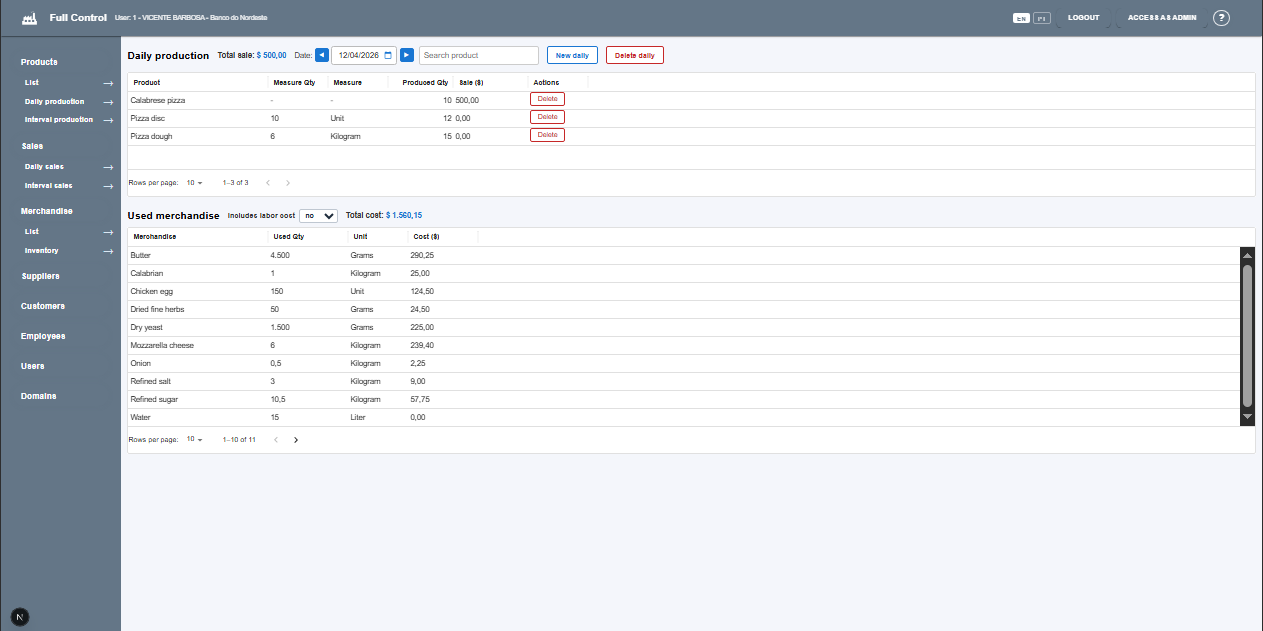
It shows all the merchandise used to manufacture the products of the day, with the quantity used and the corresponding cost.
On this screen, you only need to inform which products were produced on the day and in what quantities, and the system will calculate the quantities of merchandise used and their costs.
You must create a daily production entry by informing the production date and clicking the "New daily" button.
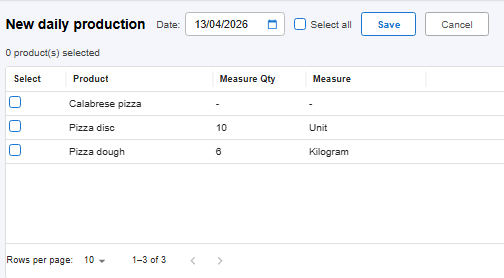
On the "Select products" screen, select the finished products and by-products produced on the day. If you prefer, you can use the "Select all" option. Click "Save" to return to the daily production screen.
Inform the quantity produced for each product by editing the "Qty,.produced" column directly in the product row and pressing "Enter". The list of merchandise used will be updated with the quantity and cost of each item and the total cost. On this screen, you can also choose whether or not to include labor time costs.
At this point, you should already have a clear idea of how useful the system is for controlling your production, with relatively little daily effort.
The next feature will provide even more information with no additional effort.
Production by interval
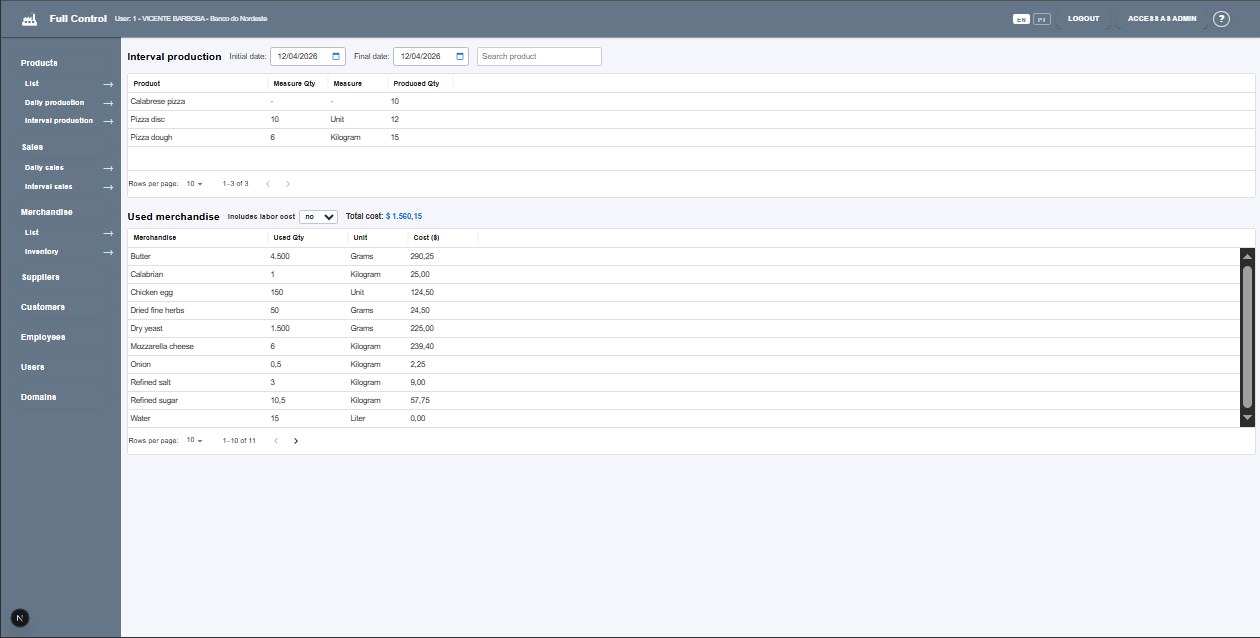
This screen is a variation of the daily production screen, with the possibility of indicating a date range. This feature is useful to determine whether the quantity of merchandise calculated by the system based on production is compatible with the merchandise stock count. Of course, the quantities should not be identical, but they should be close.
An important point about stock counting is that it must always refer to the beginning of the day, before production. If the count occurs after the day's production, the date entered in "Daily production" must be the following day.
Sales
This module focuses on merchandise output based on the quantity sold.
Even if the finished products produced on a given day are not sold on that same day, there is a long-term relationship. Technically, every finished product must eventually be sold or returned. If the merchandise quantities between produced and sold are not consistent, that should be a warning sign.
Daily sales
The operation is very similar to "Daily production", except that the selection includes only finished products. The system will calculate the use of merchandise in the portions of by-products used in the composition of by-products and the final product.
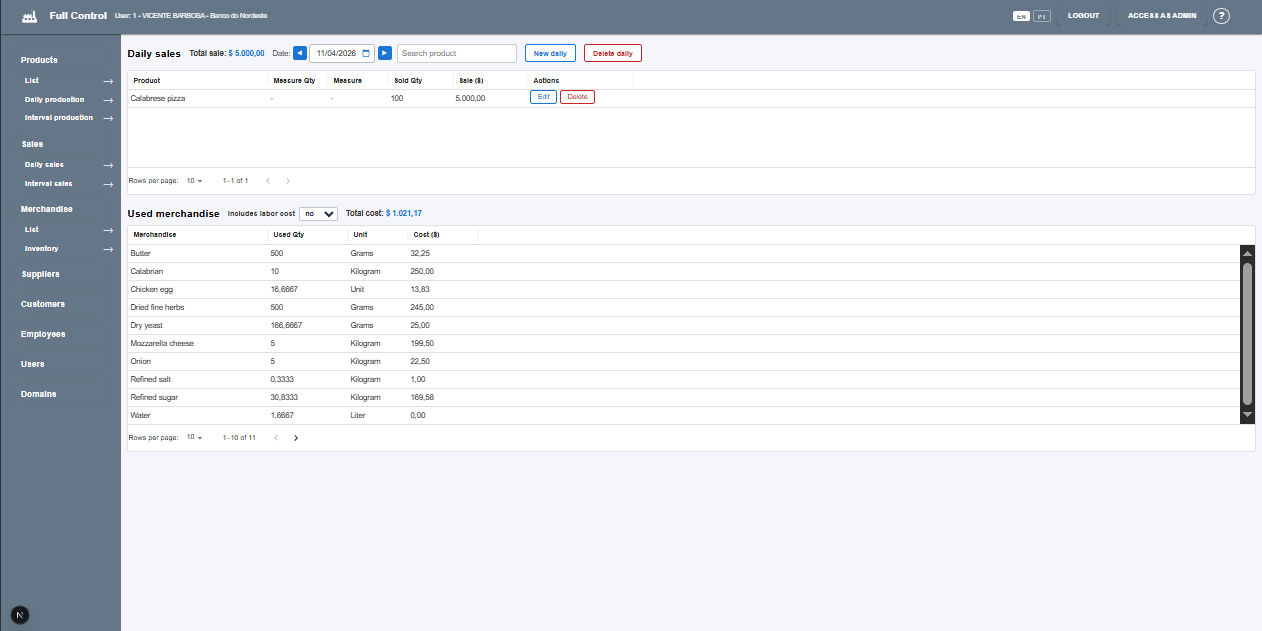
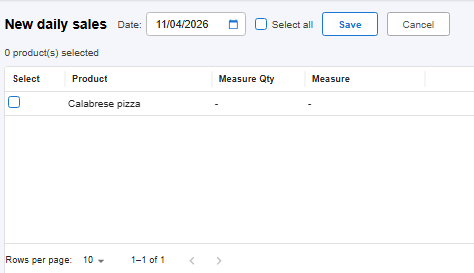
You must create a daily sales entry, informing the sales date and clicking the "New daily" button.
Inform the sold quantity of each product by editing directly in the "Qty.sold" column of the product row and pressing "Enter". The list of used merchandise will be updated with the quantity and cost of each one and the total cost. Also, on this screen, you can choose whether to include labor time costs or not.
Sales by interval
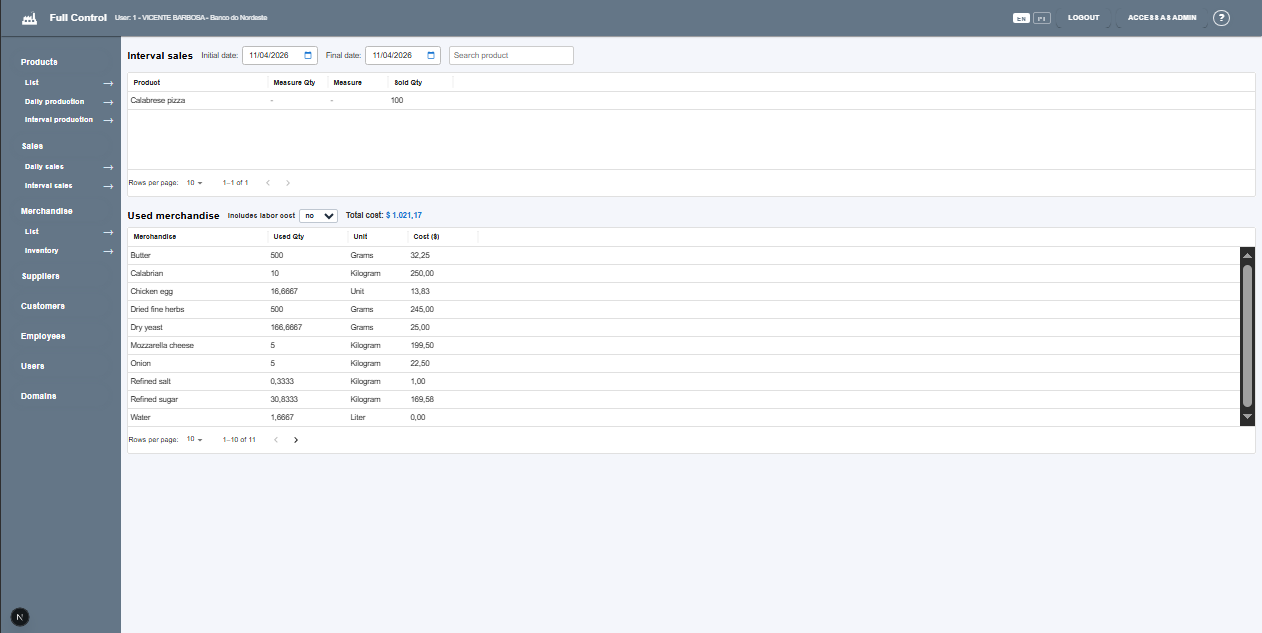
The same applies to this feature and to its similarity with production by interval.
Merchandise
Technically, merchandise refers to items purchased for resale, while raw materials are items used in product manufacturing, being transformed during the production process. This distinction is not important in Full Control, which is why the term "merchandise" is used for both cases.
Another important aspect about merchandise is that they exist in different presentations. You must register merchandise in proper units, and you can register different presentations in other units, as long as they are compatible with the merchandise unit. For example, if you register the merchandise "Sugar" with the unit of measure "Kilogram", you can register presentations such as "1-kilogram package", "10-kilogram sack", "500-gram box", etc. All these presentations are accepted, but only one must be indicated for product cost calculations where they are used.
This module is directly connected to products and production, and calculation reliability depends on correctly entering this information.
The screen below is divided into two parts.
Merchandise list
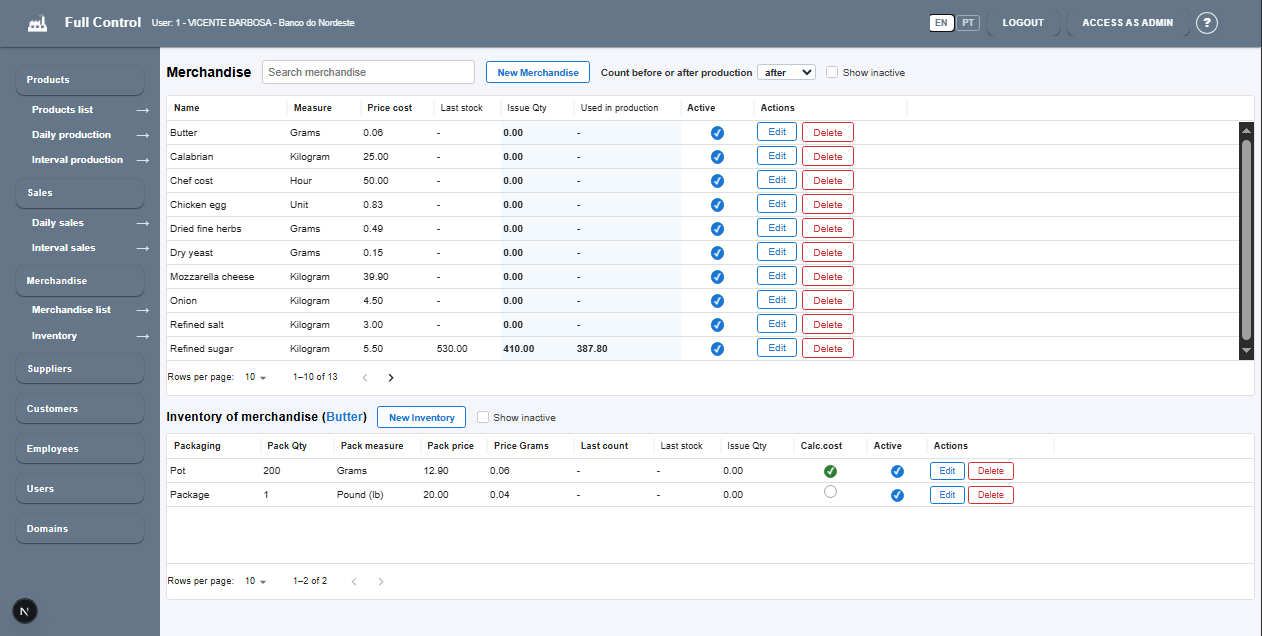
The upper part contains the merchandise list, with the following information:
- Measure: measure adopted when creating the merchandise.
- Cost price: extracted from the stock item with "Calc. cost" enabled in the Stock control grid. This is the value used for merchandise cost calculation, since there may be more than one item with different prices.
- Last stock: manually counted quantity at a given date. This count is entered in Inventory, Inventory Events.
- Stock output: quantity calculated based on the last two stock counts and entries/removals between those dates. Removals should only be returns to supplier or items becoming unusable.
- Used in production: refers to merchandise quantity used between the last two stock counts of the merchandise, according to the "Count before or after production" option. If counts occur before production, last day production is not considered; if they occur after production, first day production is not considered. It is important to standardize stock count time.
Merchandise inventory items
The lower part contains inventory items or presentations of selected merchandise. There must be at least one inventory item for each merchandise, otherwise it will not be considered for calculation, even if it composes products. Information:
- Packaging: is the packaging type selected in stock item registration.
- Pack qty: quantity of units of measure in the registered stock item. For example, 200 for a 200 ml box.
- Pack measure: is the registered item's unit of measure. In the example above, it would be ml. It only needs to be the same unit type as merchandise (in this case, volume).
- Pack price: price of the registered stock item. If it is a 2-kilogram package, enter package price, not kilogram price.
- Price <measure>: calculated price of the merchandise unit of measure. The system converts stock item unit to merchandise unit when needed, to standardize and compare prices.
- Last count: date of the last stock count of the registered stock item. It is important all items of the same merchandise are counted on the same date/time.
- Last stock: manually counted quantity at a given date. This count is entered in Inventory items, Inventory events.
- Stock output: quantity calculated based on the last two stock counts and entries/removals between those dates. Removals should only be returns to supplier or items becoming unusable.
- Calc. cost: indicator of the active item for cost calculations. This item's price is used for cost calculations. Only one stock item per merchandise has this enabled.
Edit merchandise
The merchandise creation/edit screen is also split in two parts:
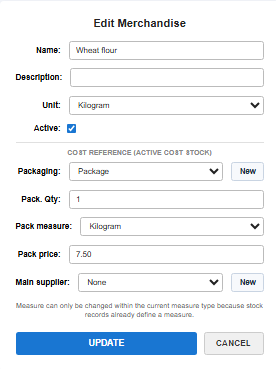
The first contains intrinsic merchandise information, such as:
- Name: name used in the company
- Description: optional
- Unit of measure: suitable unit for merchandise type. For merchandise, prefer larger units such as kilograms, liters, and meters, but this is not a rule.
The second contains information about the active inventory item for cost calculation, including:
- Packaging: select packaging type of inventory item. Optional, but helps identify merchandise.
- Pack qty: enter quantity contained in package.
- Pack measure: enter packaging unit of measure. Must be compatible with merchandise unit, but not necessarily the same. Example: merchandise in kilograms, inventory item in 1-ton bale.
- Pack price: enter inventory item price. In the example, enter the price of 1 bale.
- Main supplier: enter usual supplier for this item. Optional, but important.
Edit inventory item
This screen allows editing inventory items of selected merchandise, not only the active cost item.
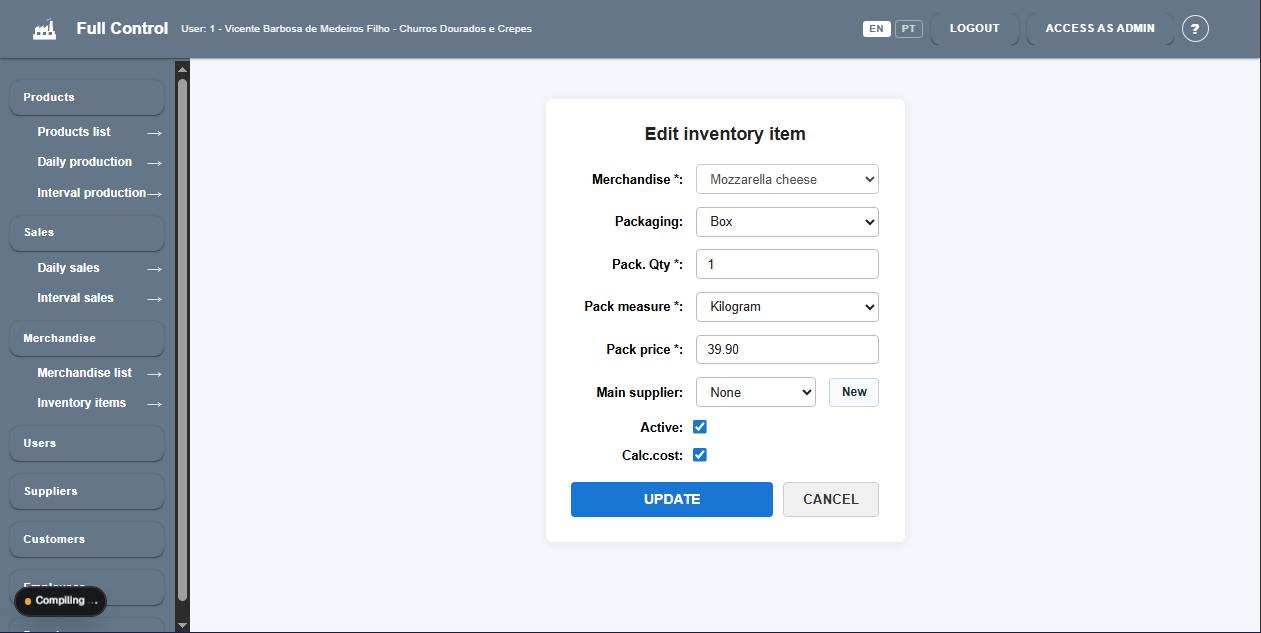
Information is the same as in the second part of merchandise edit screen:
- Packaging: select packaging type of inventory item. Optional, but helps identify merchandise.
- Pack qty: enter quantity contained in package.
- Pack measure: enter packaging unit of measure. Must be compatible with merchandise unit, but not necessarily the same. Example: merchandise in kilograms, inventory item in 1-ton bale.
- Pack price: enter inventory item price. In the example, enter the price of 1 bale.
- Main supplier: enter usual supplier for this item. Optional, but important.
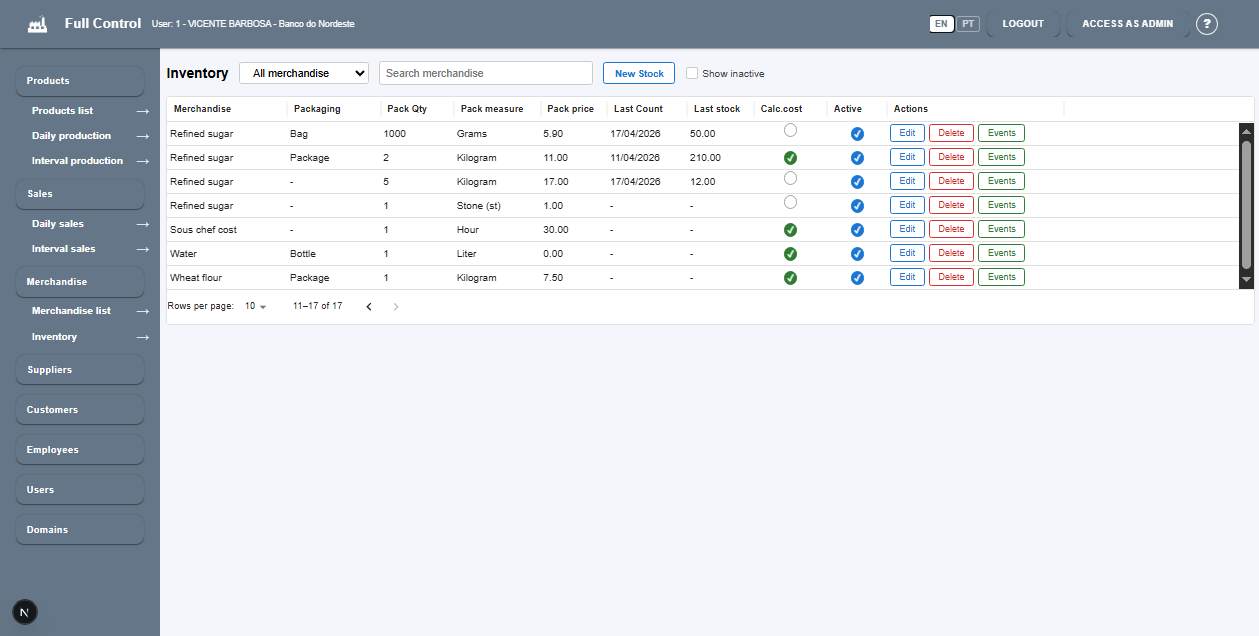
Inventory items
Contains all registered stock items, sorted by merchandise name, with the following information:
- Packaging: is the packaging type selected in stock item registration.
- Pack qty: quantity of units of measure in the registered stock item. For example, 200 for a 200 ml box.
- Pack measure: is the registered item's unit of measure. In the example above, it would be ml. It only needs to be the same unit type as merchandise (in this case, volume).
- Pack price: price of registered stock item. If it is a 2-kilogram package, enter package price, not kilogram price.
- Last count: date of the last stock count of the registered stock item. It is important all items of the same merchandise are counted on the same date/time.
- Last stock: manually counted quantity at a given date. This count is entered in Inventory items, Inventory events.
- Stock output: quantity calculated from the difference between previous stock and count event quantity.
- Last count: date of the last stock count of the registered stock item. It is important all items of the same merchandise are counted on the same date/time.
- Counted stock: manually counted quantity at a given date. This count is entered in Inventory events through the Events button.
- Calc. cost: indicator of the active item for cost calculations. This item's price is used for cost calculations. Only one stock item per merchandise has this enabled.
Edit inventory item
It is the same screen shown by the Edit button on merchandise Inventory items screen.
Inventory events
Contains entry, exit, and count events of stock items, entered by user when they happen or when scheduled, such as stock count.
- Entry: merchandise entries must be registered on received dates. Quantity must be in items, not measure units. If one box contains 10 kilograms, receipt event quantity should be 1.
- Exit: exits due to supplier return or items becoming unfit must be registered. Exits for production must not be registered. That is calculated in counts.
- Count: verification of stock quantity of items. It is important all stock items of a given merchandise are counted at the same time. Example: if there are 1 kg, 2 kg, and 5 kg presentations of same merchandise, all 3 must be counted.
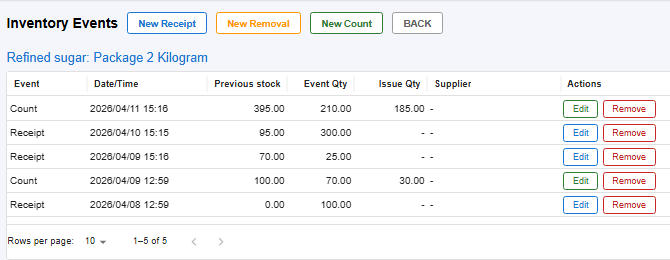
The Inventory events list contains all events of one stock item in descending occurrence order, with following information:
- Date/Time: event date/time. Filled with current date/time when creating New Entry, but can be changed.
- Previous stock: quantity before event. If event is a count, count quantity becomes previous stock of next event.
- Qty event: entry, exit, or count quantity. Depends on event.
- Stock output: quantity calculated from difference between previous stock and count event quantity.
- Supplier: in entry/exit events, contains supplier name. In count event, this does not apply.
Users
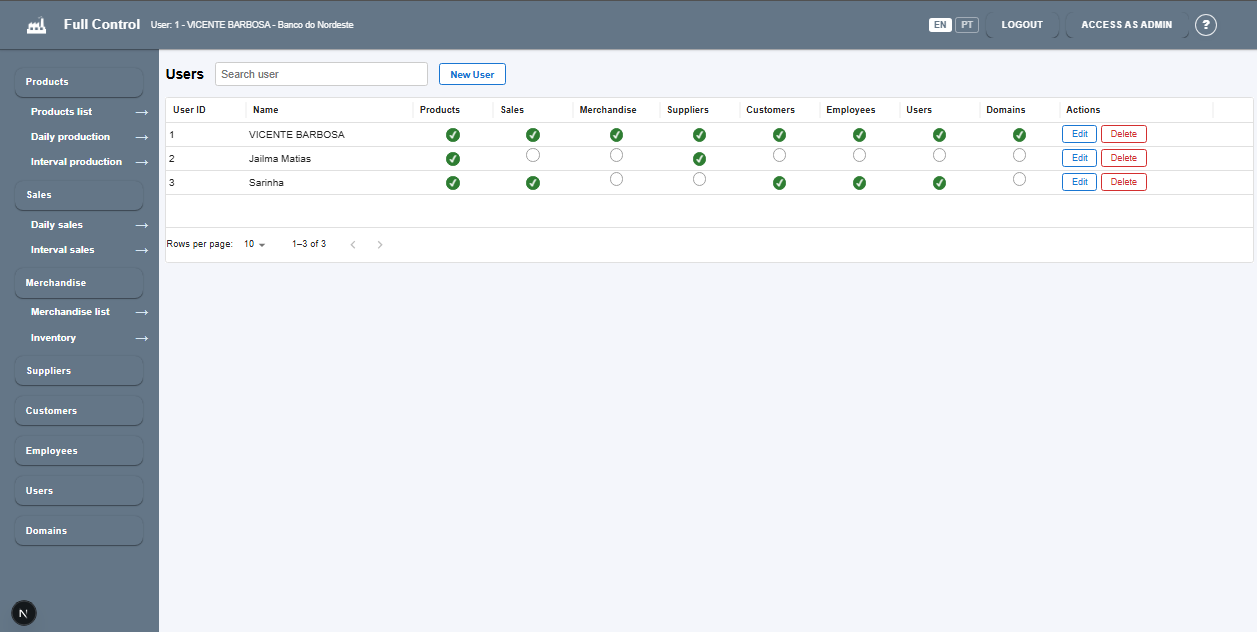
This screen contains the list of system users in the company.
User 1 (admin) is created automatically when the company is registered and has permission in all system modules. You can also create other users with permission in the desired modules.
New user
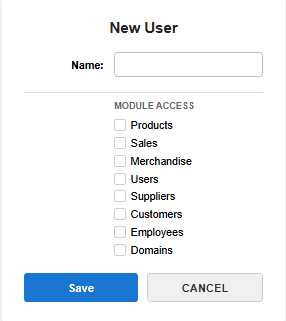
During registration, you should only enter the user name and authorized modules. The system will create the user and set the Userid and PIN, which can be viewed on the Edit User screen.
Edit user
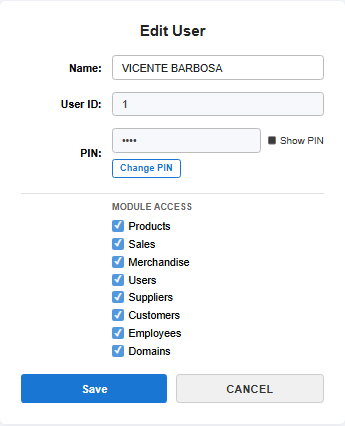
The user edit screen allows you to view and change all user information, except the Userid.
2. Secondary modules
Suppliers
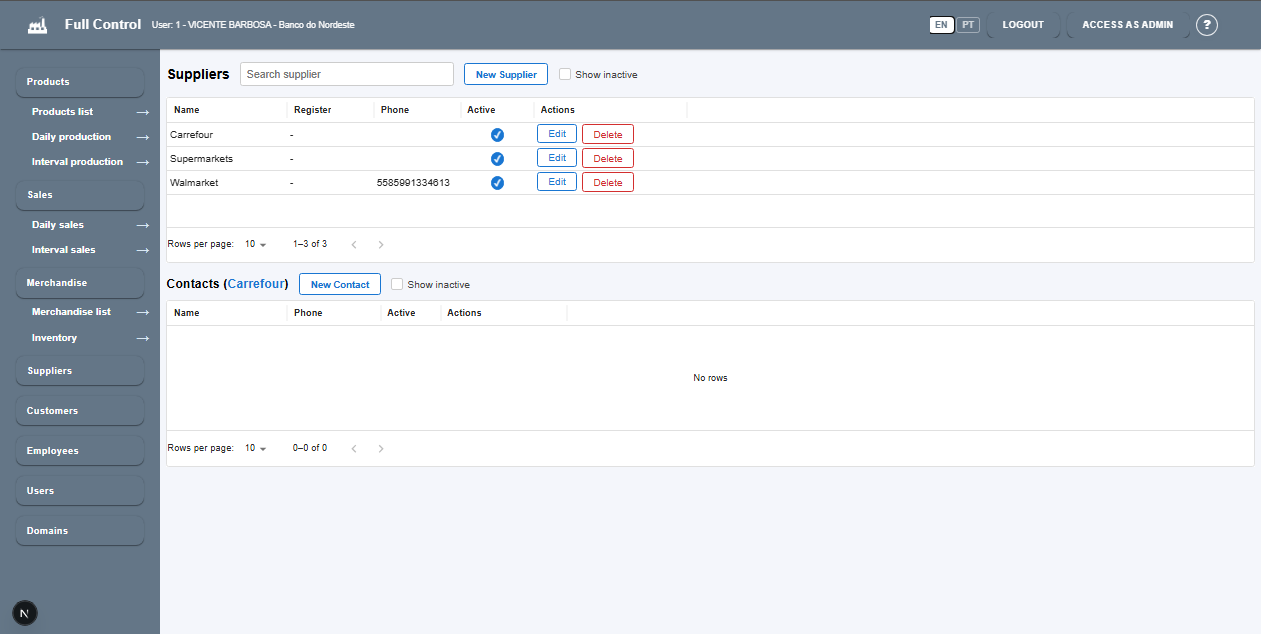
This is a generic supplier registration module. It contains only universal information.
The upper part has the list of registered suppliers, which can be associated with inventory items of merchandise.
The lower part has the list of supplier contacts, with relevant information, such as phone, email, etc.
Customers
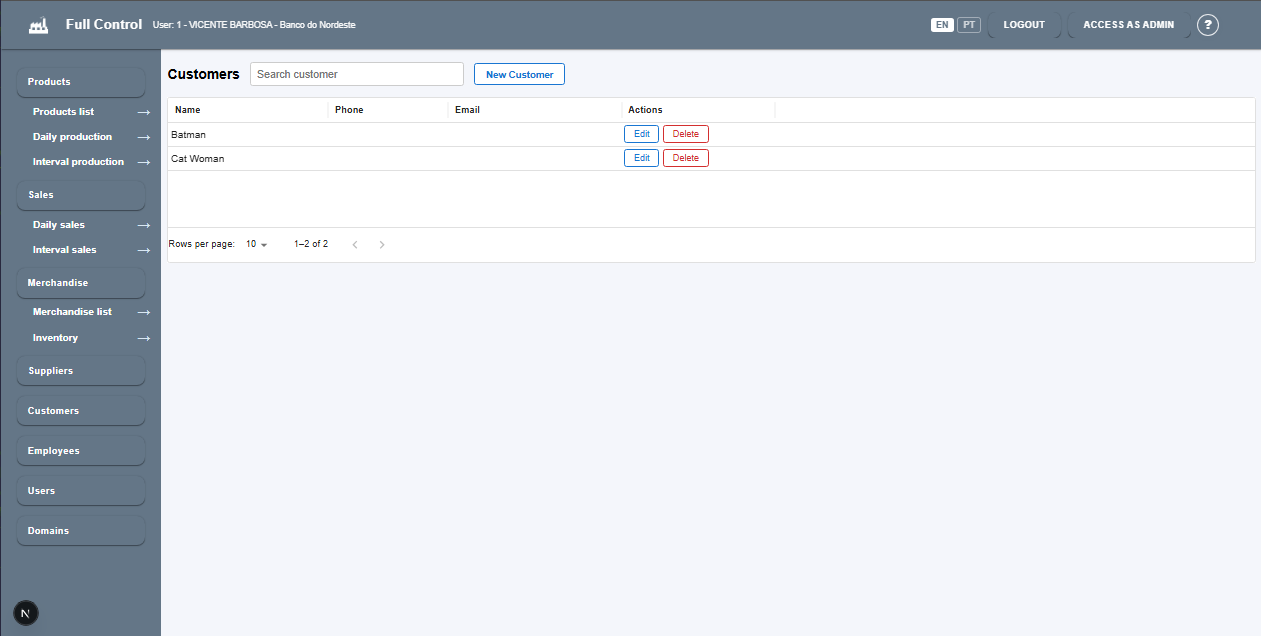
This is a generic customer registration module. It contains only universal information.
Customer registration has no integration with any other Full Control module. It was maintained because there was the possibility of integration in the sales module. It may still have it in the future.
Employees
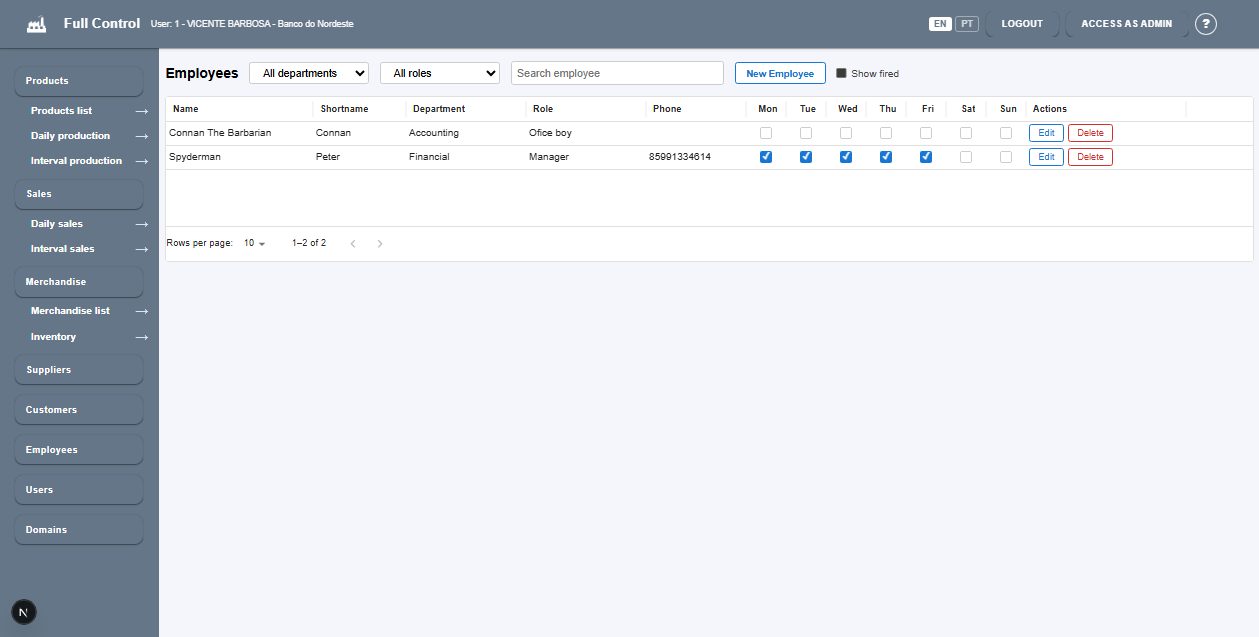
This is a generic module for registering employees. It contains only universal information.
You can associate the employee when registering inventory events, just for control purposes.
Domain tables
This module consists of domain table registrations used for association with other system entities.
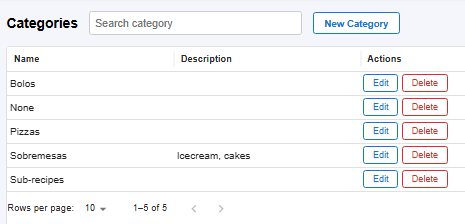
Categories
It is a property of products, which allows organization and filtering of products by category.
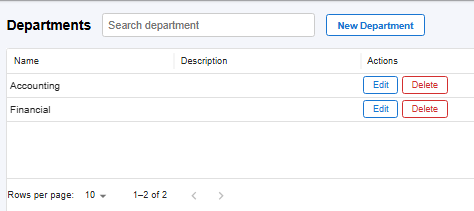
Departments
It is a property of employees.
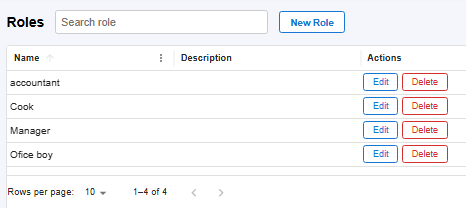
Roles
It is a property of employees.
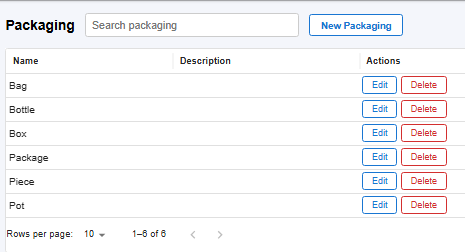
Packagings
It is a property of inventory items.